From the time students enter a learning environment we expect them to “focus.” But what does a focused student actually look like? Historically, focused students are sitting with their backs straight at a desk with hands folded, or furiously taking notes as the teacher lectures from the front of the class.
One definition of focus according to the Miriam-Webster dictionary is to “concentrate attention or effort.” If 30 students are surveyed, there will be 30 different versions of what they do to achieve concentration of attention and effort.

As educators, we strategize the best ways to present concepts and content that will have the greatest impact and the highest probability of engaging students. We know that one size does not fit all. Focus is no different and the skills required for focus a) look different for every student b) are not innate to all students, c) take practice and strategies.
On the surface, a student with their head down on the desk, doodling, or looking out the window will automatically be pegged as not focusing on the task and in need of redirection. However, students who are not naturally stimulated by the content sometimes find their needed stimulation by fidgeting and are more likely to increase their focus when doing so. How does a teacher determine if a student is struggling to focus, or is using strategies that look like distraction?
Start with the student. Even our youngest students can talk about what they hear and understand during a lesson. Ask curious questions that help you quickly assess what the student is learning from a specific instruction, lesson, activity, etc. This is fact gathering and should not be a time to correct or augment understanding. Ask the student directly what helps them keep their attention on the task, whether it is listening, brainstorming, or discussing. Ask prompting questions. What does your body need to be doing to focus? What do your hands need to be doing? What do your eyes need to be doing to focus? Again, this is fact finding, not applauding or condemning behaviors. Determine with the student if there are environmental factors in the classroom that make it harder to focus. Change seating or make classroom adjustments. For example, are there too many things to look at on the classroom walls?
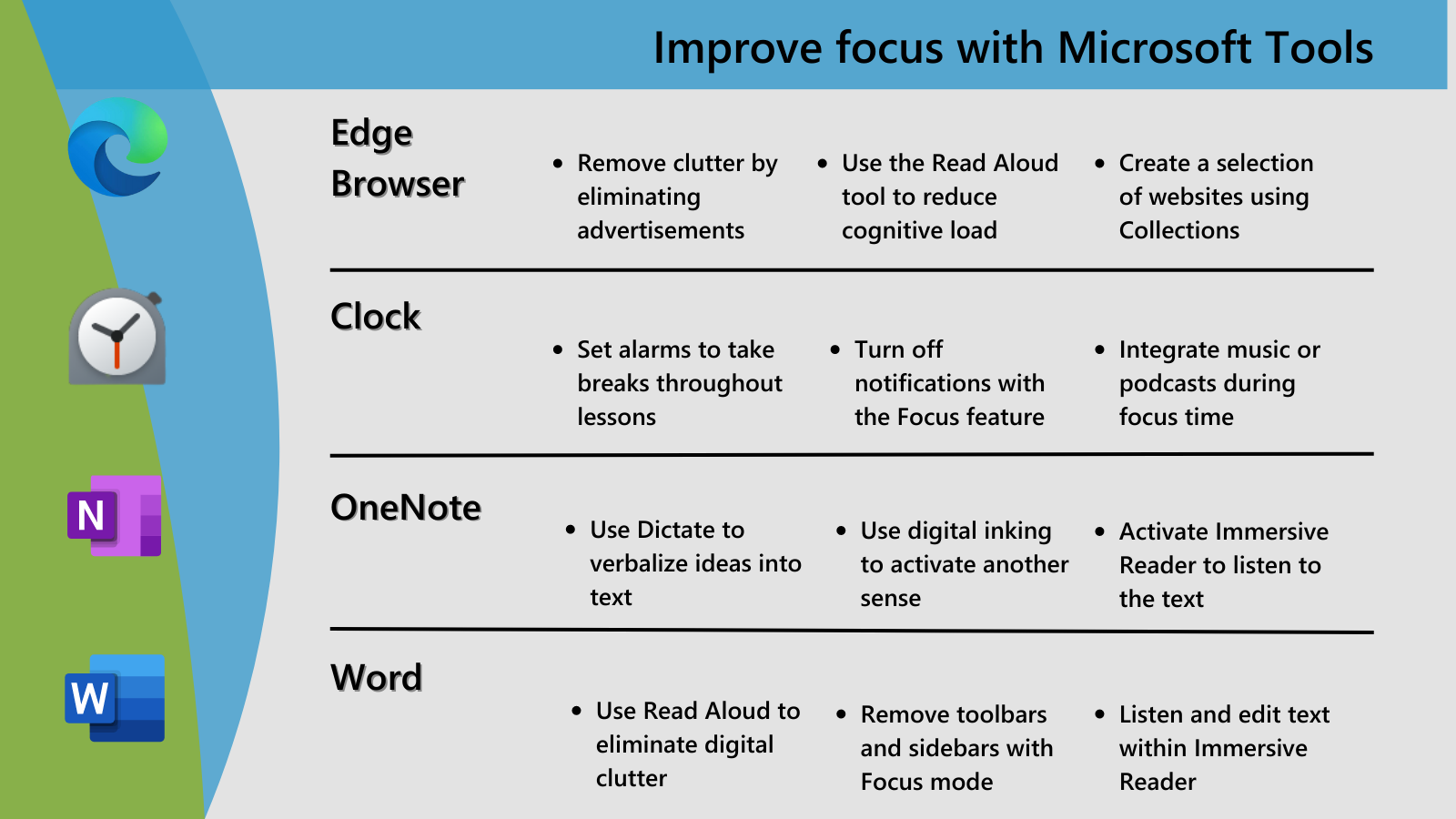
Technology can also feel cluttered or overwhelming. In the Edge Browser, students can minimize distractions by using Immersive Reader to simplify their experience. A few examples are removing the clutter or ads that distract from the important content, utilizing the Read Aloud tools, or creating curated collections of websites that reduce distraction. Enrich learning with the Microsoft Edge browser
Help students with self-awareness. Students may not be aware that their attention has drifted, and they are now trying to figure out how the cord for the blinds got so tangled. The teacher and student can find a physical, verbal, or visual cue to return to the task. This is not shaming or punitive, but a positive redirect where the student feels connected to the teacher rather than at odds. Students can self-assess if they are off task with prompting questions or thoughts: “Am I doing what I am supposed to be doing?” or “I think I need to set a timer to help me stay on task for the next 10 minutes.”
Focus in Windows 11 can help students minimize distractions and stay on track. Utilize the Clock app with timers, music integration, and notification silencing.
Create engaging lessons and content. While creating lessons and content, start by asking yourself if the lesson would hold your attention. Does it a) have logical flow b) not feel so overwhelming your eyes glaze over c) spark interest and leaves you wanting more? These may seem like automatic things we check for when lesson planning, but consciously evaluating allows us to not make assumptions. If your attention isn’t held by the content, there is a high probability that it will not engage your students either.
Presenting content digitally can either create or hinder focus. There are many apps and games lurking in the background, so it is important to minimize distractions from the work that students need to focus on. OneNote is a tool that not only captures content all in one place, but it also allows students to interact and create right on the same page as the presented information. Minimizing the number of clicks and having multi-sensory, multi-modal ways of connecting learning will hold students’ attention longer. Differentiation in the classroom on Learn
Reduce cognitive load. We all know that feeling of being so full we can’t eat another bite. Our brains do the same thing. Once a student has reached the point of saturation, focus is going to wane, and attention is going to drift. Cognitive load is the amount of working memory resources that we are using at any one time. Intrinsic cognitive load is the effort and focus on a specific topic, the inherent difficulty of subject matter. Extrinsic load is all the portions of memory that are taken up by the processes not related to the learning at all, and this is where teachers have the most control. The things that are running in the background impact learning by reducing the amount of memory used for learning. They divert focus and attention to unimportant information, such as that cute animation on the PowerPoint slide.
Frequently students give us the deer in the headlights look when presented with too much information. Technology helps to reduce the cognitive load on a student. One way is to use built-in tools within apps that may not be designed as a support tool, but are exactly what is needed. Word has these tools, one being Read Aloud. Not only will Read Aloud reduce cognitive load by using multiple senses and highlighting the word as it is read, but it serves as a great editing tool. Ask students to listen to their writing to decide if the writing conveys what they really want to relay. They can focus on one aspect of the writing at a time, such as the grammar or the idea, which reduces the cognitive load.
Build in breathing/pause points into the lesson. Break the learning activity into smaller chunks. Create natural stopping points that allow students to process and absorb the content. The breaks can be short, even 30 seconds or a minute, of reflection, breathing or stretching exercises or just a quiet moment before moving on.
Timers are a fantastic way to building in the pause points without having to remember to do them. Use the Clock app in Windows to set alarms for taking breaks throughout the lesson.
Engage all the senses. Lessons that use more senses such as auditory and visual and tactile will create interest that will hold the student’s attention longer. In addition to holding attention, the more senses engaged in learning, the more parts of the brain that are engaged, increasing the probability of the content moving from working memory into long-term memory.
In Windows 11, there are ways to engage every sense. Some examples are through digital inking in OneNote, dictation to verbally communicate ideas into text, listening to text with Immersive Reader while visually reading, even kinesthetic, getting up and moving your body when watching embedded videos in PowerPoints and live Teams meetings. Learning is a whole-body experience and the more ways we can engage students, the higher chance that the environment will hold the attention and focus of the student.
At the end of the day, everyone struggles with focus, and it looks different for all of us. As teachers, we can support student focus by understanding the individual needs of students and creating content that engages and benefits all. Windows 10 Accessibility Features and Tools
This blog was written by Accessibility Advocate Robin Lowell. Robin is an MIE Expert, Special Education teacher, and a leader in teaching via digital distance learning.