How school leaders can be more efficient in their daily tasks by developing better focus
The week before we went on break for the holidays, my team and I thought that it would be a great idea for me to write about how to better focus as a leader. Well, here we are, already in the new year, and I am just now writing this. That is not to say that I haven’t THOUGHT and TALKED about this blog for the past three weeks. I just spent a lot of time doing everything BUT completing the task. In other words, I just couldn’t focus!
To focus means to maintain attention on a specific task. Easier said than done when you are constantly shifting your attention from students, to teachers, to parents, to everything else you handle in a day! It can be a challenge, but not impossible by using a few strategies to build habits to maintain the sanity of a busy school leader.
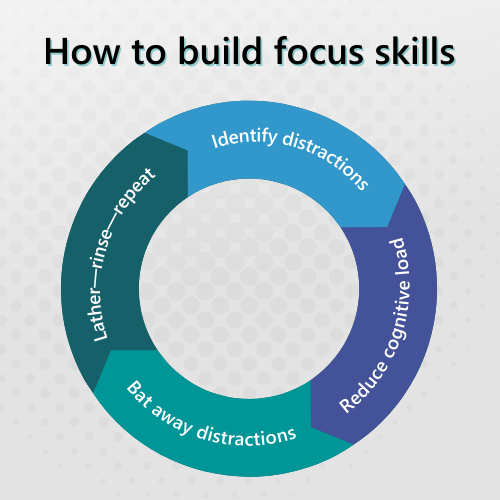
Identify distractions filling up your day
Educator and businessman, Stephen Covey wrote about people’s inability to identify what is important versus what is urgent when it comes to managing our time. He created The 4 Quadrants for better time management. This matrix is great for showing where your time goes throughout the day – especially tasks that prevent you from getting more important work done.
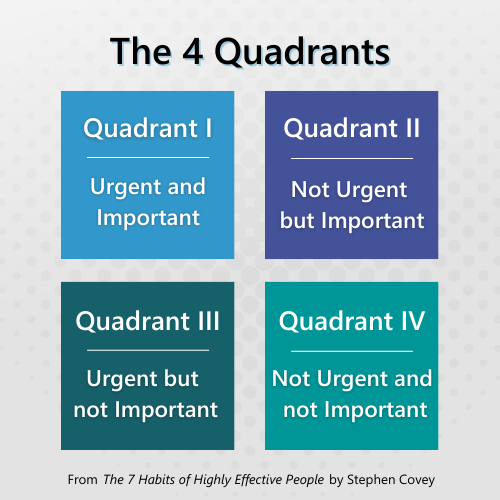
Quadrant I: Urgent and important
Quadrant II: Not urgent but important
Quadrant III: Urgent but not important
Quadrant IV: Not urgent and not important
* The 7 Habits of Highly Effective People by Stephen Covey, 1988
Try this: At the end of a day, write down everything you did. Using Covey’s Matrix, identify which quadrant each task falls under. According to Covey, you should be spending most of your day in Quadrant’s I and II. Consider ways to create efficiencies to address your daily workload, especially tasks that fall under Quadrant’s III and IV.
Help your staff understand the differences. After a similar exercise, my team now indicates if a task is not urgent and/or not important when assigning tasks or asking for help on a project. This gives everyone permission not to feel like they must drop everything to respond to a request. We also use the chat feature in Microsoft Teams for back-and-forth discussions or quick questions instead of filling up our email.
Reduce cognitive load
Think about all the times you are walking through the hallway, and you are stopped by a teacher reminding you to come to their PLC meeting, the security officer asking if you have followed-up on yesterday’s fight in the cafeteria, or the office manager asking about the email you needed to send to a parent. We all know that feeling of being so busy taking care of the daily pressures of being in charge, the smallest task can seem impossible to complete when you are being pulled in so many directions.
Try this: First thing in the morning, make a list of tasks to complete by the end of the day. By creating a list of reasonable tasks to complete helps to reduce your cognitive load because you have a list you can go back to in an organized way. And by reasonable, I don’t mean complete the master schedule or teacher evaluations in one day. Break big projects down into smaller, achievable daily tasks that lead up to a deadline.
One way to organize your tasks is to use an online app like the Microsoft To Do App. It’s like taking all those sticky-notes covering your desk and organizing them according to due dates and importance. You can even flag an email and it will show up on your to-do list.
Bat away distractions during your focus time
Block your calendar for focus time. Whether you need to use an hour for one large task like visiting classrooms, or half an hour to respond to emails. Blocking your calendar helps to commit to that task and prevents other tasks being added by others.
Try this: Track your focus time. There are several online tools to track your time, but if you use Windows 11, the clock has a built in time tracker called Focus Sessions. When you turn on the focus timer, Do Not Disturb will turn on and block all notifications and alerts (you can set priority notifications or alerts to override the focus session.) For those who like a challenge, there is also an overview of your Daily progress to help achieve your focus goals and keep track of your overall time spent focusing on tasks each day to see if you improve over time.
Build in pause points when doing larger tasks
If working on one task for a long time, be sure to take short breaks. This gives your brain a chance to process and absorb the content of whatever it is you are doing. Breaks can be short, even 30 seconds or a minute of reflection, breathing or stretching exercises or just a quiet moment before resuming. If using the Windows 11 Clock, the Focus Session will automatically alert you when it’s time to take a break. However, you can choose to skip breaks before launching a session if you do not want any interruptions.
Try this: When it’s time for a break, take in a deep breath while you count to four. Let out the breath at the same pace. Do this 4 times (or more if you want). Don’t you feel better? Dare I say more focused?
Lather—rinse—repeat
Building in focus time takes practice, especially if you block time to focus and you still get interrupted. Set up focus time throughout the day – even if it is just for 10 minutes. Celebrate even the smallest success like getting rid of all those sticky notes or checking off 3 of the 6 tasks you wanted to complete that day. Keep track of overall progress and reflect on any positive results due to practicing focus.
Read our blog on student Focus: Encourage focus in students – insight2execution (i2e LLC) (i2e-llc.com)
This blog was written by i2e CEO Dr. Kim West. Kim was a National Board-Certified K-12 educator, author, and content designer for professional learning. She is a Certified Clifton Strengths Coach. Kim has worked with Microsoft as a Fellow, Master Trainer, and is a Microsoft Certified Educator.